What is a QR code and how do I add one to my project?
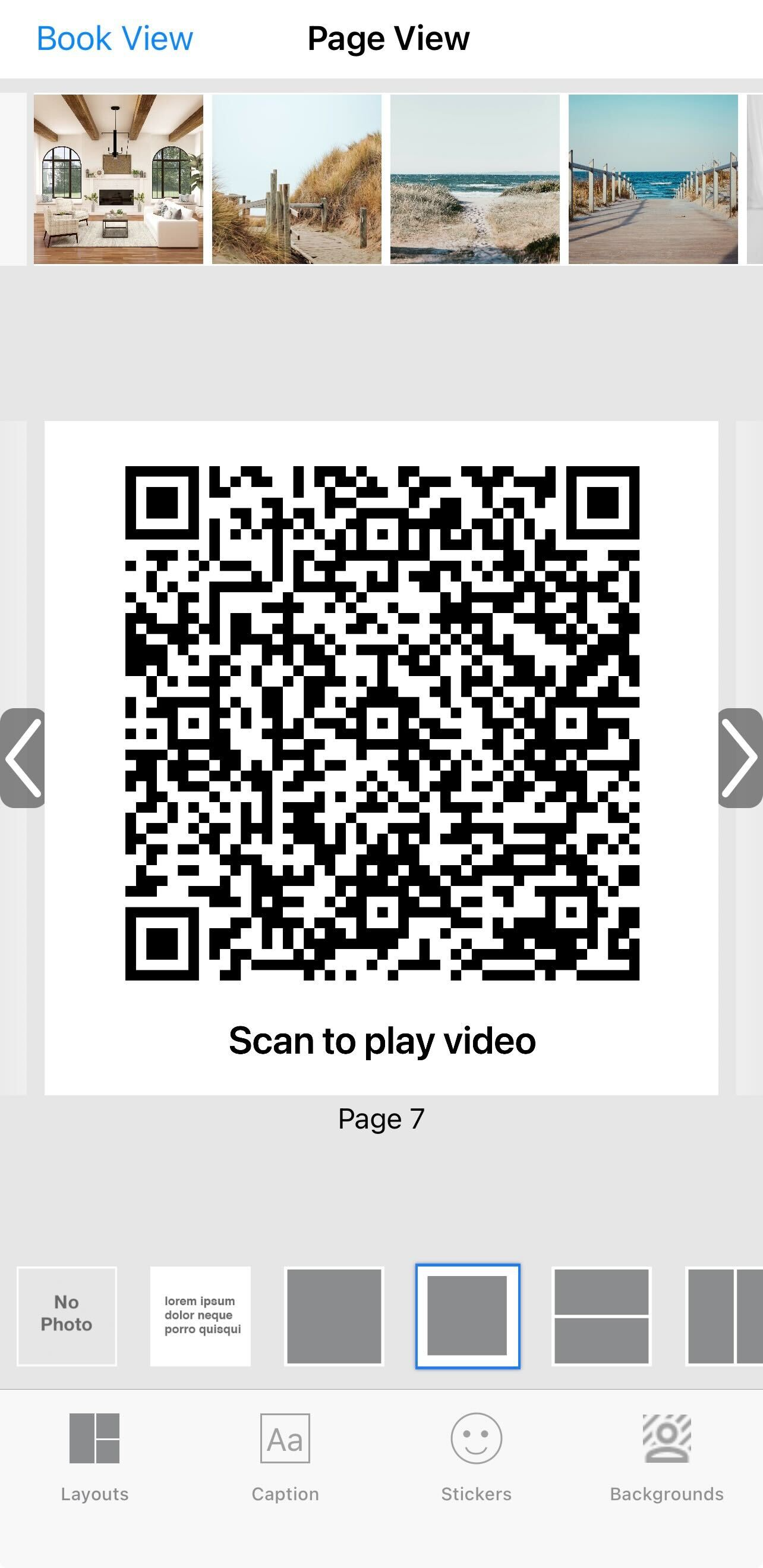
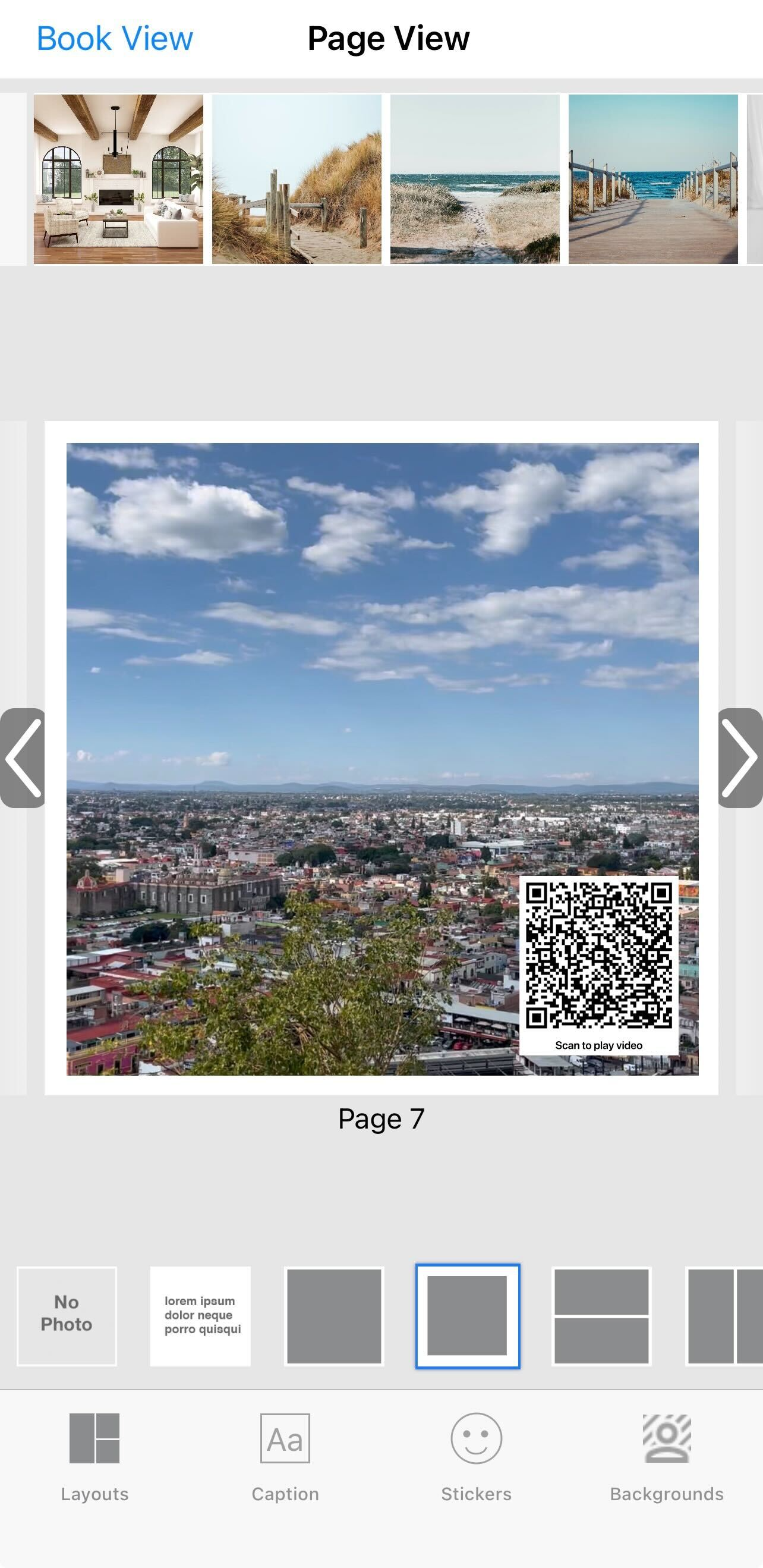
QR codes let anyone quickly access a video, website, or map location you choose with a simple scan from their phone’s camera. With our updated editor, you can customize your video QR code by adding a thumbnail image and “Scan to play video” text to make it more engaging and easier for viewers to interact with.
QR codes can be added as a single image to your book or within your collages.
We've included a link to Apple's website here, which explains how to scan a QR code to open a website on your phone.
Video QR codes with editing capabilities is available on iOS only with SimplePrints v 6.37.0+
We've included step-by-step instructions below on how to add QR codes to your book:
To add a video QR code to your book:
- From any blank page, tap Add Photo
- Tap the blank page and toggle to Video selection
- Select the video you'd like to use. Make sure you have given permission to the SimplePrints app to access your photos & videos.
-
Next, you can customize the QR Code by:
a. Trim Video
b. Add "Scan to play video" text below the QR code (optional)
c. Add a thumbnail for the video (optional)
- If the option to Add a thumbnail for the video has been selected, you can use the video image slider to select the thumbnail you'd like to use
- Tap Use in the top right of the screen when you have finished your selections
- To preview your video, tap on the QR code/thumbnail and tap Preview Video
To edit a video QR code that has already been added to your book:
- Tap on the QR code/thumbnail in your book
- Tap Edit Photo
- Edit your QR code
- Tap Done when edits are complete
QR code examples below


To add a Website Link QR code to your book:
- From any blank page, tap Add Photo
- Tap the blank page and toggle to the QR Code section
- Select Custom link
- Add the Website URL you want your QR code to link to
- Tap Use This Link when you have finished your selections
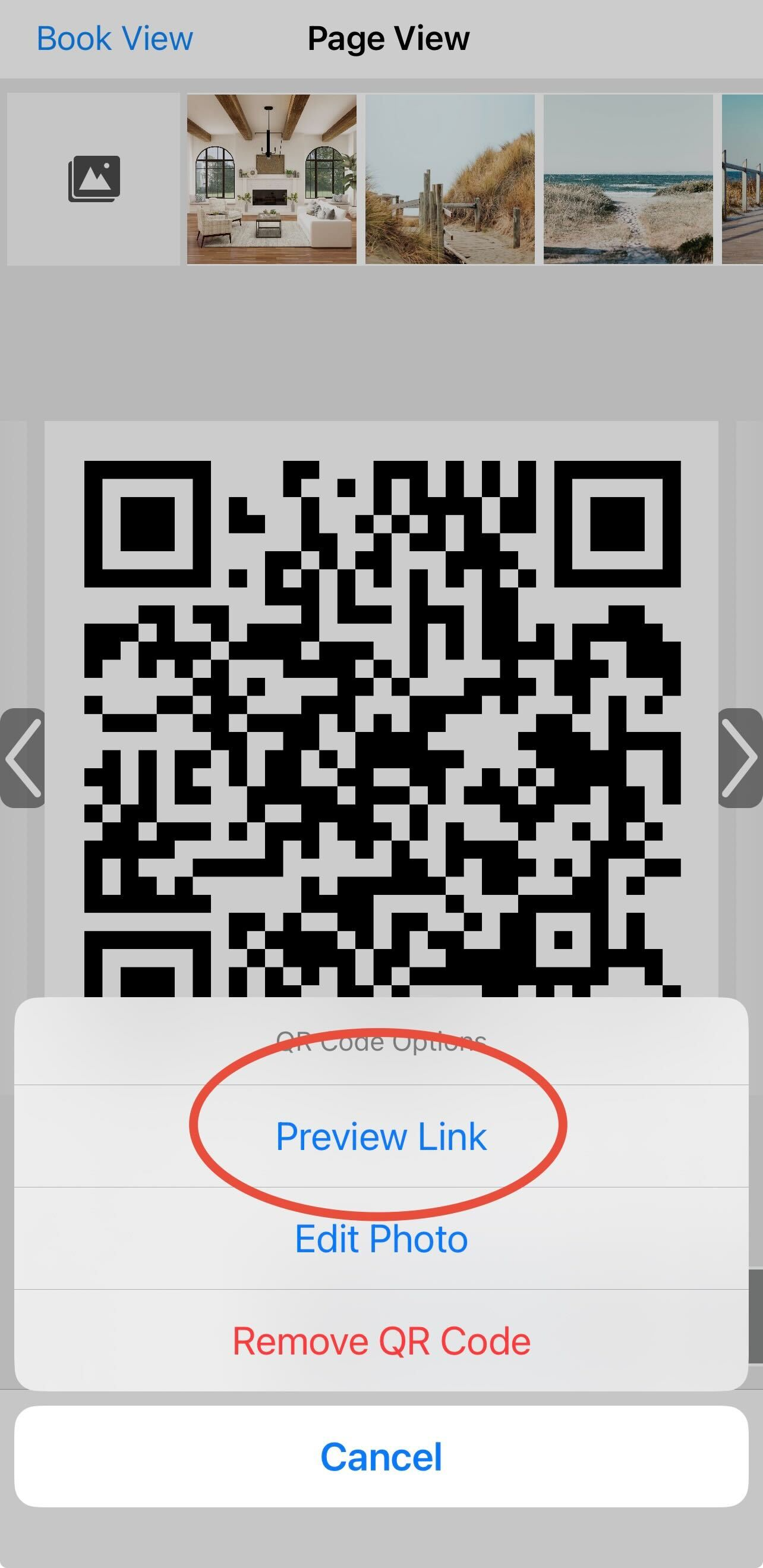
- To preview your QR code, tap Preview Link
*At this time, editing Website Link QR codes is not an option. You will need to remove the code and redo the steps above if an error is made.

To add a Map location QR code to your book:
- From any blank page, tap Add Photo
- Tap the blank page and toggle to the QR Code section
- Select Map
- Type in the map address/location
- Tap Use Selected Place when you have finished your edits
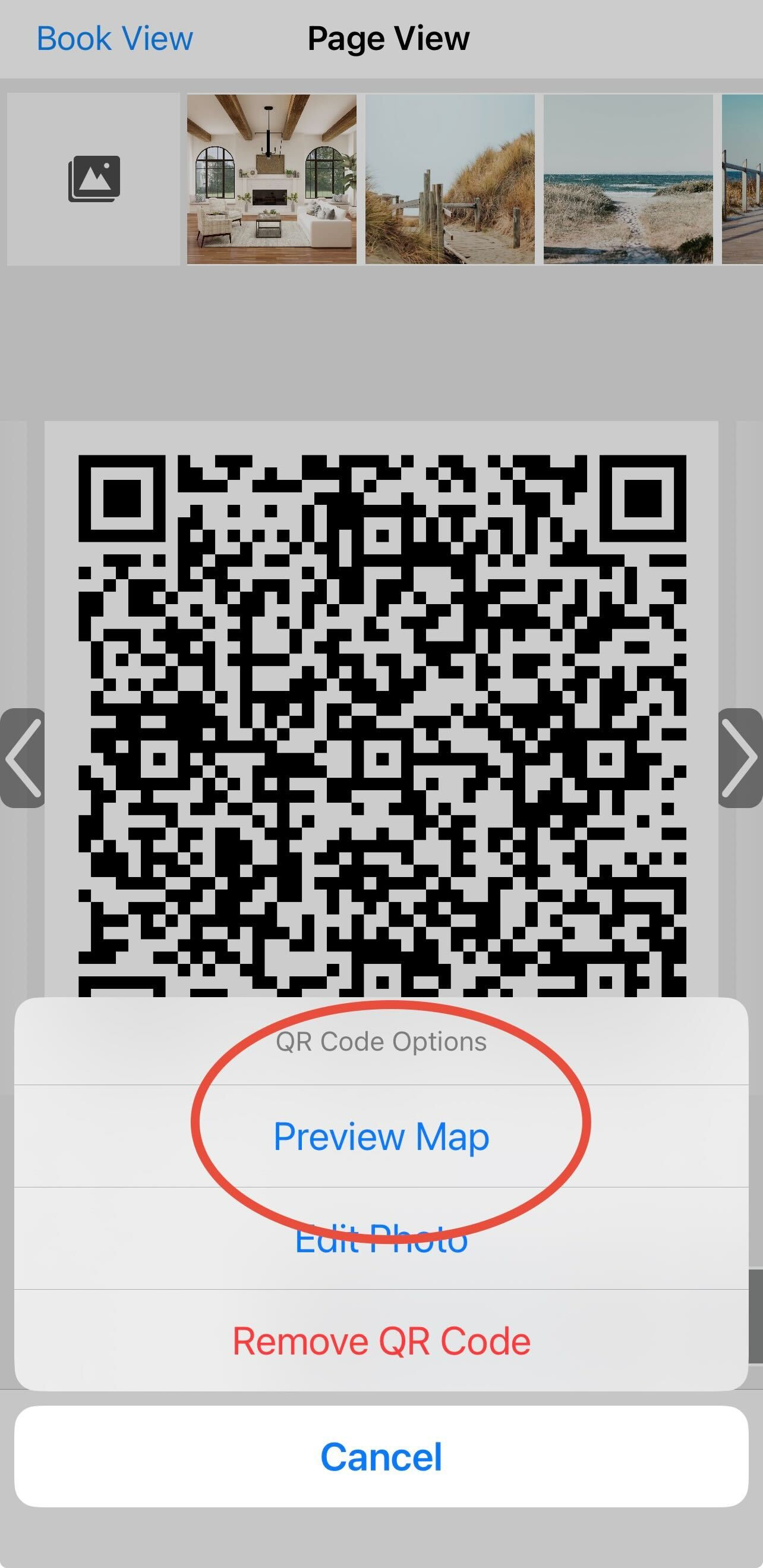
- To preview your QR code, tap Preview Map
*At this time, editing Map QR codes is not an option. You will need to remove the code and redo the steps above if an error is made.